Welcome to JobsForNationals!
So your Employer profile has just gone LIVE and here are some of the next steps to get started.
EMPLOYER DASHBOARD
As soon as you login you will land in your Employer Dashboard.
Here you will see the bell icon on the top which indicates any unseen messages.
You will also see a menu on the left which is what we will be referring to a lot as it connects you to all the key features of the platform.
You will also see Application Statistics and Recent Applications.
memberships
Let's explore the membership options.
Under the Membership tab you will see all the membership options.
There are two membership options; Basic Branding & Premium Branding.
Under the Basic Branding you choose between the Classic Job Posting Packs or Featured Job Posting Packs.
We provide membership options to meet all Employer branding and job posting requirements.
post a job
Let's move to posting a new job.
Posting a job is a simple three-step process.
The first step consists of completing a simple job description.
NOTE: If you are copying & pasting information in the job description section, make sure to paste in a notepad first to remove any design elements.
Next you can also add pre-qualifying questions that applicants must answer as part of their application process ending with the job location.
Next is where you will select the job posting package this job needs to be associated with and last is the confirmation before the job is submitted for admin review.
Promote
Once the Jobs have been posted, it's time to dive into the Promote section.
In this section you have all the options to promote your Employer Profile & Jobs including:
- Premium Branding Upgrade (for Employers on Basic Branding who don’t want to get all the benefits of Premium Branding)
- Featured Employer (for Employer who want to appear on the top of the listing)
- Featured Job (for Employers on the Basic Non-Featured plans)
- Video JD (for Employers who want to promote their Career opportunities through video while making it more accessible to People of Determination)
- Pop-Up Video (for Employers who want to increase their brand visibility on the home page and redirect all traffic to their Employer page)
- Company Spotlight (for Employers who want to increase their brand visibility on the home page and redirect all traffic to their Employer page)
- Email Marketing (for direct marketing your brand or jobs to the newest UAE National Job Seekers registered on JobsForNationals)
- Social Media Campaigns (for promoting the Employer page, Job or Video JD to a very specific targeted audience based on gender, age, location, …)
manage jobs
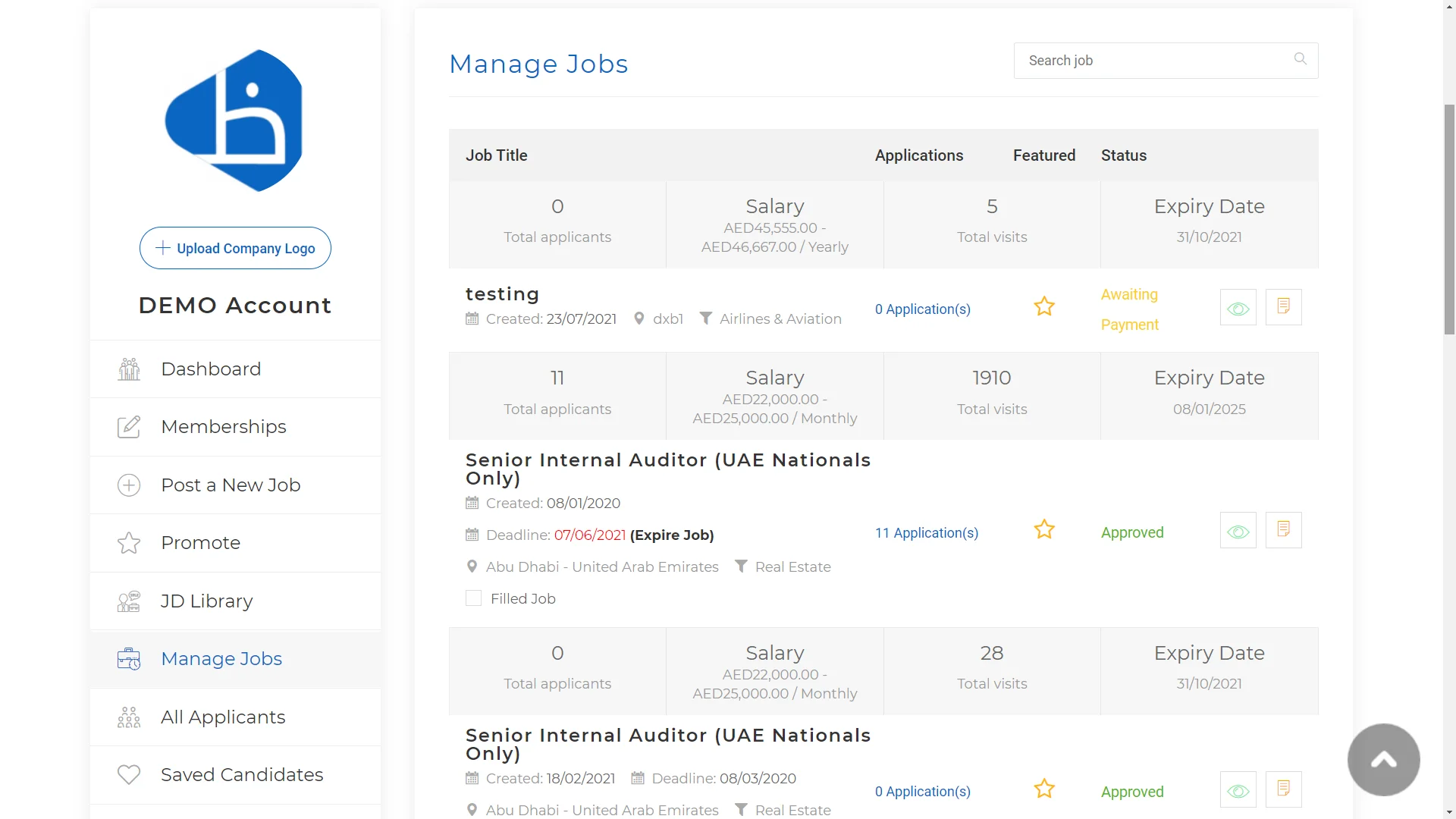
Next item on the side-menu is manage jobs.
This section is basically an overview of all the jobs that have been posted.
By clicking the Job Title or the Eye Icon, you will be able to see the actual job posting.
By clicking the Applications you will be able to see all the applicants.
You will also be able to see how many unique visitors have viewed the job.
all applicants
Next item on the side-menu is all applicants.
This section gives you all the controls to manage your applicants through the ACTION drop down menu next to each applicant.
Here you can:
- Download their CV
- Create a Meeting
- Email the Applicant
- Shortlist
- Reject
We recommend managing the applicants from this menu.
followers
Next item you should explore is the followers.
This is perhaps one of the most important menu since Employers can start growing their UAE National followers from day 1 without even posting jobs.
This can be done by promoting your Employer profile URL on your social media accounts.
Since JobsForNationals is an exclusive UAE National Talent platform, only UAE Nationals are able to follow you.
reviews
This is where you can see all the company reviews and star ratings.
packages
Accessible only to admins and those with user permissions, this section provides the package history including the number of jobs used and balance remaining.
subscriptions
If you are subscribing to a recurring plan, you will be able to see all your subscription information here. You can also cancel your subscription from this section.
transactions
Accessible only to admins and those with user permissions, this section shows the entire transaction history and their status.
my emails
This section shows all the email communication taken place from your account.
transactions
Accessible only to admins and those with user permissions, this section shows the entire transaction history and their status.
support
This is where you can reach out to our support for any support or new feature inquiries.
password
This is where you can reset your password.